
Manage WordPress Plugins Without Slowing Your Site
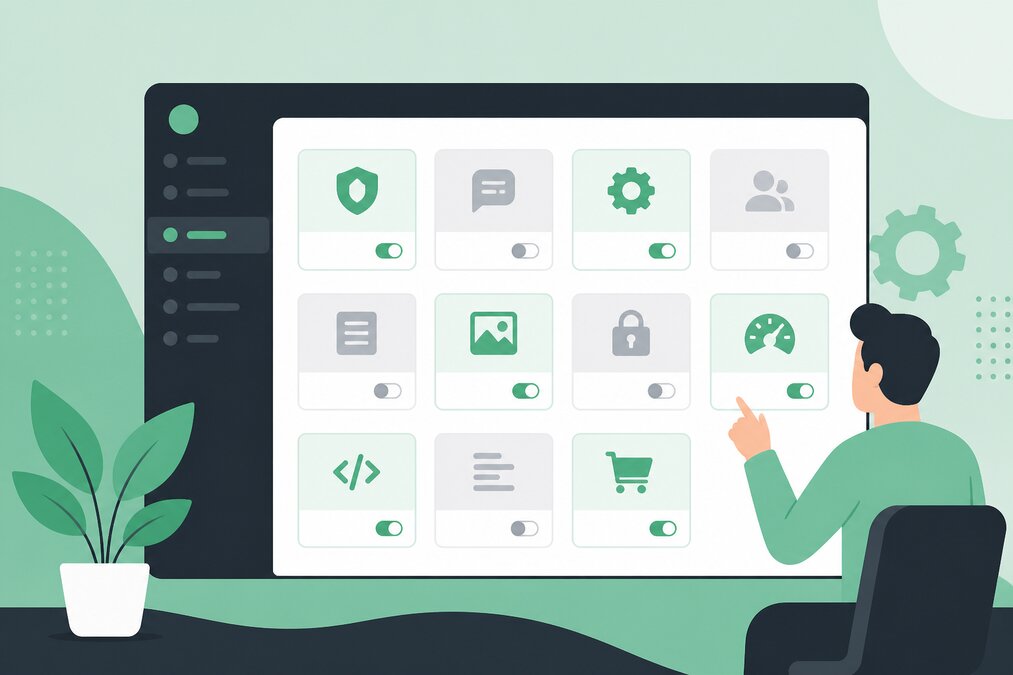
WordPress plugins add useful features to a website.
You can use plugins for forms, security, caching, SEO, backups, analytics, payments, image optimization, and many other tasks.
But installing too many plugins can make website management more difficult and can sometimes affect performance.
The goal is not to use as few plugins as possible.
The goal is to use the right plugins.
Do Plugins Always Slow WordPress?
No.
A well-coded plugin may have very little effect on front-end performance.
Another plugin may perform many database queries, load scripts on every page, or run expensive background tasks.
Plugin quality and behavior matter more than simply counting plugins.
Review Your Plugin List
Open your WordPress plugin page and create a list.
For each plugin, ask:
- Why is this installed?
- Is it actually being used?
- Is it maintained?
- Is it compatible with the current WordPress version?
- Does another plugin already provide this feature?
If you cannot explain why a plugin exists, investigate it.
Remove Unused Plugins
Inactive plugins should not remain installed forever.
If a plugin is no longer required, remove it after confirming that nothing depends on it.
Keep a backup before making major changes.
Avoid Duplicate Features
A common problem is using multiple plugins for the same function.
For example, installing several plugins that all provide caching, image optimization, or security features can create conflicts.
Choose a clear solution for each major function.
Keep Plugins Updated
Plugin updates can contain:
- Security fixes
- Bug fixes
- Compatibility improvements
- Performance improvements
Create a backup before major updates.
After updating, test the website.
Be Careful With Abandoned Plugins
A plugin that has not been maintained for a long time deserves additional scrutiny.
The longer software remains unsupported, the greater the chance that it may have compatibility or security problems.
If a feature is no longer maintained, consider replacing it.
Test Plugins Before Installing
Before installing a plugin, check:
- What does it do?
- Is it maintained?
- Does it support your WordPress version?
- Does it require external services?
- Does it add front-end scripts?
- Does it store large amounts of data?
- Does it modify the database?
Do not install a plugin simply because it has an attractive feature.
Plugin Performance and Database Usage
Some plugins store large amounts of information in the database.
Examples can include:
- Logs
- Statistics
- Revisions
- Form submissions
- Activity records
If the plugin keeps unnecessary historical data forever, the database can grow.
Review retention settings when available.
Security Plugins Need Planning Too
Security plugins can be useful, but they can also perform background scans and logging.
On a resource-limited shared hosting account, an overly aggressive configuration can increase resource usage.
Configure security features according to the needs of the website.
Test After Disabling a Plugin
If you suspect a plugin is causing a problem, disable it and test the website.
Check both the front end and administrator dashboard.
If the problem disappears, investigate the plugin or its interaction with another component.
Use a Staging Environment
For important websites, test plugin updates on a staging copy before applying them to production.
A staging website provides a safer environment for testing updates and configuration changes.
Monitor Hosting Resources
If your hosting control panel provides resource information, monitor it.
A website that suddenly starts consuming significantly more resources may have:
- A plugin problem
- Increased traffic
- A cron job issue
- A database problem
- A security issue
Final Thoughts
Plugin management is an important part of WordPress maintenance.
Do not chase an arbitrary plugin count.
Instead, keep plugins necessary, updated, maintained, and properly configured.
THE HOSTGURU shared hosting can support WordPress websites, but website owners should still keep the application lightweight and well maintained.
Frequently Asked Questions
There is no universal number. Use the plugins your website genuinely needs.
If you no longer need them, removing them is usually better than keeping them installed.
Yes. Some plugins can consume significant CPU, memory, database, or background processing resources.
For important websites, testing updates on a staging environment is strongly recommended.
