
How to Migrate Your Website to New Shared Hosting
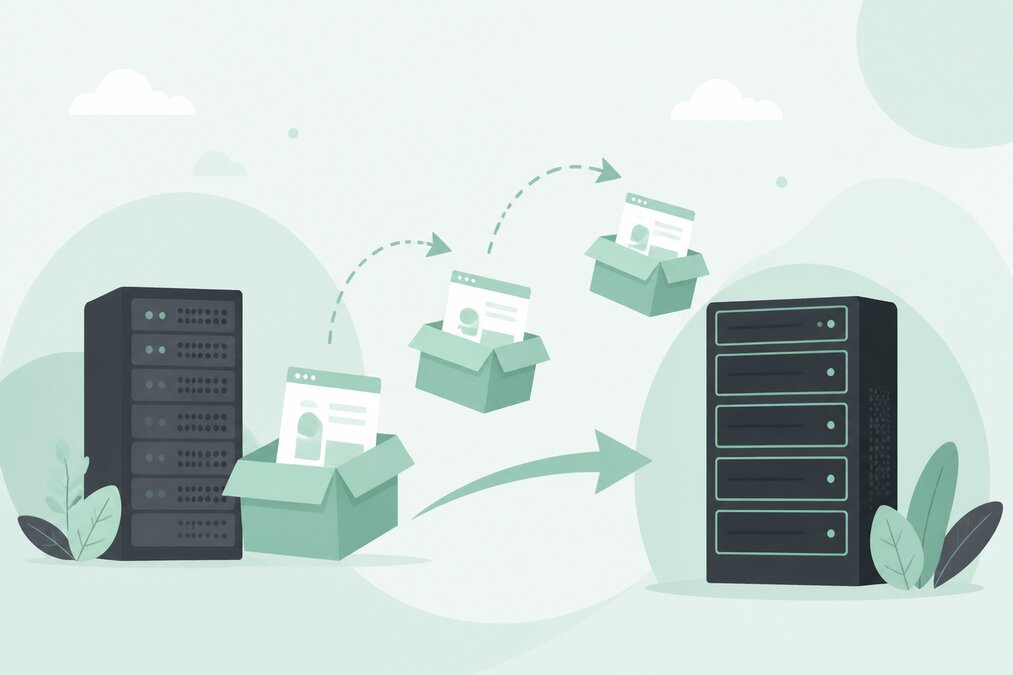
Moving a website from one hosting provider to another can look complicated, but a planned migration can be completed with minimal disruption.
The most important part is preparation.
Do not cancel the old hosting account before confirming that the website and email services are working correctly on the new server.
Why Do Websites Move to New Hosting?
Common reasons include:
- Better performance
- Different control panel
- Higher resources
- Better support
- New hosting requirements
- Cost changes
- Server location
- Business growth
A migration should solve a specific problem rather than being performed without a reason.
Make a Website Inventory
Before migration, list everything that needs to move.
For a WordPress website, this may include:
- Website files
- Database
- Media files
- Email accounts
- DNS records
- SSL
- Cron jobs
- Subdomains
- Add-on domains
- Redirects
The more complex the website, the more important this inventory becomes.
Lower DNS TTL Before Migration
If you control the DNS zone, consider lowering the TTL before the planned DNS change.
A lower TTL can help reduce the period during which old DNS information remains cached.
However, lowering TTL does not instantly remove existing cached records.
Plan the change in advance.
Copy Website Files
Use the hosting File Manager, FTP, or SFTP to transfer website files.
For large websites, a compressed archive can be faster.
Make sure the files are placed in the correct document root on the new server.
Move the Database
For WordPress, the database is essential.
Export the database from the old hosting environment and import it into the new one.
Then update the WordPress database connection information if the database name, username, password, or host has changed.
Check the WordPress Configuration
Review the configuration file and confirm the database settings are correct.
Do not accidentally expose the configuration file publicly.
Create Email Accounts
If email is also being migrated, create the required mailboxes on the new hosting server.
For example:
If you forget to create an important mailbox before changing MX records, email delivery can be interrupted.
Copy Email Data
Moving email addresses is not the same as moving email messages.
If you need old messages, you also need an email migration process.
IMAP can often be used to synchronize messages between mail servers.
Plan this separately from the website migration.
Check DNS Records
Review:
- A records
- CNAME records
- MX records
- SPF
- DKIM
- DMARC
- TXT records
- Subdomains
Do not delete DNS records simply because they do not appear related to the website.
Some records may be required by email or other services.
Test the New Website Before DNS Switch
Whenever possible, test the website on the new hosting environment before changing public DNS.
Check:
- Homepage
- Pages
- Images
- Login
- Contact form
- Database functions
- SSL
- Redirects
- Search
- Downloads
For e-commerce websites, test the complete checkout process.
Change DNS
Once the new hosting environment is ready, update DNS.
Depending on your setup, this may involve changing nameservers or updating A records.
Keep the old hosting active during the transition.
Monitor After Migration
After DNS changes, monitor the website and email.
Check for:
- Broken pages
- Missing images
- 404 errors
- Email delivery problems
- SSL warnings
- Redirect problems
- Database errors
Some visitors may continue reaching the old server temporarily because of DNS caching.
Cancel Old Hosting Only After Verification
Do not immediately cancel the old account.
Keep it active until:
- Website works
- Email works
- DNS is correct
- Data is confirmed
- Backups are available
- Migration is considered complete
Final Thoughts
Website migration is easier when treated as a checklist instead of a single task.
Prepare the new hosting account, copy files and databases, recreate email, verify DNS, test everything, and only then retire the old environment.
THE HOSTGURU can be used as a new hosting environment for websites moving from an older shared hosting account.
Frequently Asked Questions
Yes. The domain can remain the same while the website is moved to a different server.
No. Keep it active until the new website and required services are confirmed.
Not automatically. Email accounts and existing email messages require separate planning.
It depends on website size, database size, email data, DNS configuration, and the complexity of the website.
