
How to Manage WordPress Themes Safely
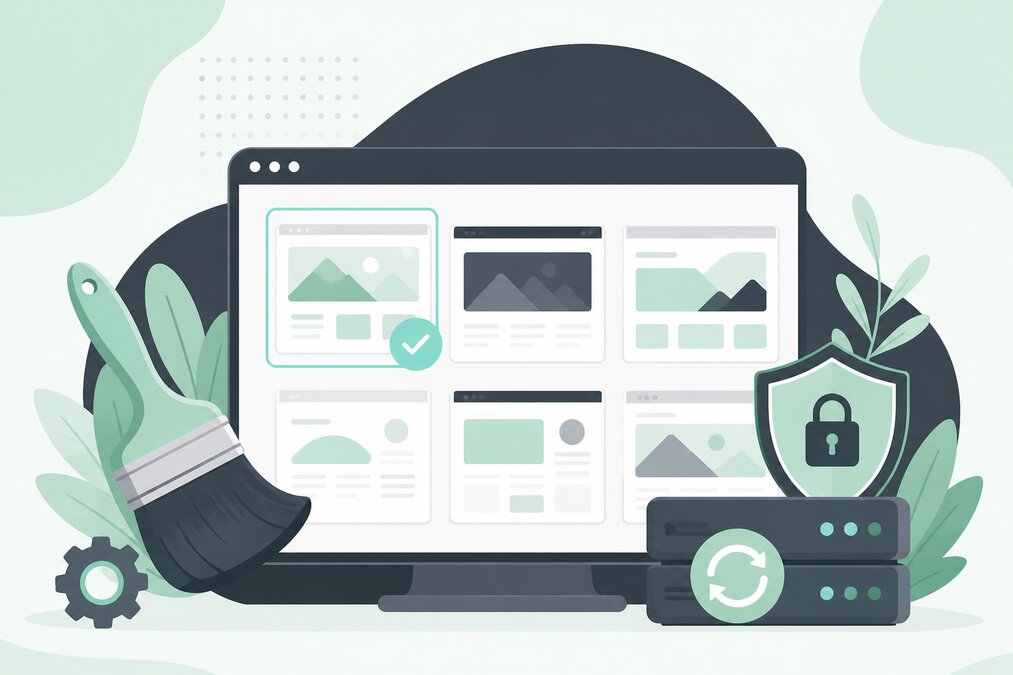
A WordPress theme controls much of the visual appearance and layout of a website.
Changing a theme can affect menus, widgets, page layouts, custom code, forms, and other website functionality.
That is why theme management should be done carefully.
Keep Your Current Website Backup
Before changing or updating a theme, create a recent backup.
A useful backup should include:
- Website files
- Database
- Important configuration
A backup gives you a recovery option if something goes wrong.
Keep the Theme Updated
Theme updates can include:
- Security fixes
- Bug fixes
- Compatibility improvements
- Performance improvements
Use a supported version of the theme.
Remove Unused Themes
If a website has several inactive themes that are no longer required, consider removing them.
Keeping unnecessary software increases maintenance requirements.
However, keep a default fallback theme when appropriate.
Do Not Edit the Main Theme Directly
Directly modifying theme files can cause problems when the theme is updated.
Theme updates may overwrite custom changes.
If you need custom modifications, consider an appropriate child-theme or custom-code approach.
Use a Child Theme When Appropriate
A child theme can allow custom theme changes without modifying the original theme files directly.
It can be useful for:
- Custom CSS
- Template changes
- Theme functions
- Design modifications
Not every customization requires a child theme, so choose the method based on the actual requirement.
Test Theme Updates
A theme update may change the website's appearance or behavior.
Before updating an important production website, test the update in a staging environment when possible.
Check:
- Homepage
- Navigation
- Forms
- Header
- Footer
- Blog pages
- Mobile layout
- Custom templates
Check Plugin Compatibility
Themes and plugins work together.
A theme update may affect plugin functionality.
After updating a theme, test important plugins and website features.
Avoid Untrusted Themes
Do not install modified or suspicious themes from unknown sources.
A theme can contain malicious or unwanted code.
Use themes from trustworthy sources and keep them maintained.
Check Theme Performance
A visually impressive theme may load many resources.
Review:
- JavaScript
- CSS
- Images
- Fonts
- External services
Choose a theme that provides the features you actually need.
Review Custom Code
Many websites contain custom code added over time.
Before changing a theme, identify whether custom code exists in:
- Theme files
- Child theme
- Custom plugins
- Header
- Footer
- Additional CSS
This prevents accidental loss of important functionality.
Test Mobile Layout
A theme may look correct on a desktop screen but have problems on mobile devices.
Check:
- Menus
- Buttons
- Images
- Text
- Forms
- Tables
- Navigation
Clear Caches After Changes
After updating a theme, cached files may cause visitors to see the old version.
Clear the appropriate website or server cache when necessary.
Keep Documentation
For business websites, record important customizations.
This helps developers understand what has been changed when maintenance is required.
Final Thoughts
WordPress themes should be treated as part of the website's software environment.
Keep them updated, remove unnecessary themes, maintain backups, test important changes, and avoid modifying theme files carelessly.
THE HOSTGURU WordPress hosting customers can follow these practices to reduce problems during theme maintenance.
Frequently Asked Questions
Generally, unnecessary themes can be removed to reduce maintenance and security risks.
You can, but direct modifications may be lost during updates.
No. It depends on the type of customization you need.
For important websites, testing first in a staging environment is safer.
