
CDN Caching Rules for WordPress and WooCommerce
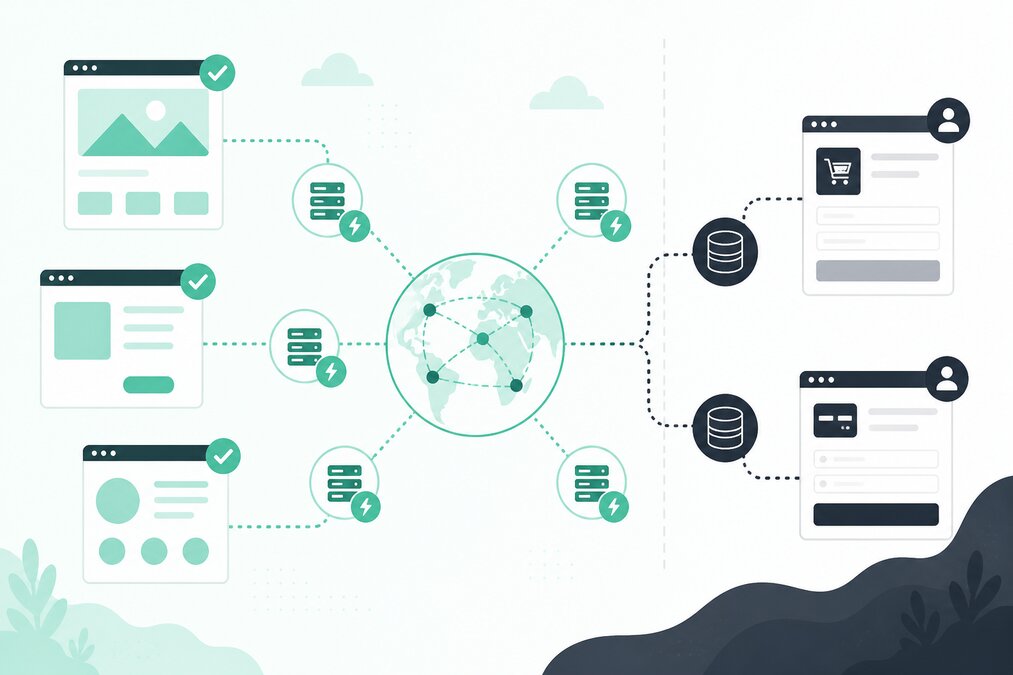
A CDN can improve the delivery of static website content and reduce the distance between visitors and cached content.
However, WordPress and WooCommerce websites contain both static and dynamic content.
Caching everything in the same way can create problems.
What Does a CDN Cache?
A CDN can commonly cache static resources such as:
- Images
- CSS
- JavaScript
- Fonts
- Other static files
Dynamic pages require more careful handling.
WordPress Pages Need Careful Caching
Public WordPress pages can often be cached when their content does not change for every visitor.
However, logged-in users may need different content.
Do Not Cache the WordPress Login Area Blindly
Administrative pages should be treated differently from public content.
Be careful with caching around administrative functionality.
WooCommerce Needs Extra Care
WooCommerce websites contain dynamic areas.
Examples include:
- Cart
- Checkout
- Account pages
- Session-related content
These areas should not be cached like a normal public blog page.
Keep Cart Content Dynamic
A customer's cart can be different from another customer's cart.
Serving cached cart content incorrectly can create serious problems.
Protect Checkout Pages
Checkout information is sensitive and dynamic.
Do not apply generic page caching rules without understanding how the website works.
Protect Account Pages
Customer account pages contain user-specific information.
They should not be treated as publicly cacheable pages.
Cache Static Assets
Static files are usually better candidates for CDN caching.
These may include:
- Images
- CSS
- JavaScript
- Fonts
Set Suitable Cache Duration
Long cache periods can reduce repeated downloads.
However, when files change, visitors may continue receiving older versions until the cache is refreshed.
Use Cache Busting Carefully
When static files change, versioned filenames or appropriate cache-busting methods can help browsers and CDNs request the new file.
Clear Cache After Major Changes
If an old version continues appearing after a website update, clear the relevant caches.
Check:
- Browser cache
- WordPress cache
- Server cache
- CDN cache
Do Not Cache Private Content
Content containing personal or account-specific information should not be publicly cached.
Check Cookies
Some WordPress and WooCommerce functionality depends on cookies.
Caching rules should account for sessions and authenticated users.
Test Before Going Live
After changing CDN rules, test:
- Homepage
- Product pages
- Cart
- Checkout
- Login
- Account
- Contact forms
Monitor Errors
If customers report:
- Wrong cart items
- Old content
- Login problems
- Checkout errors
review caching rules immediately.
CDN Does Not Replace Hosting Optimization
A CDN can help with content delivery, but it cannot fix every server-side problem.
Database performance, PHP processing, plugins, and hosting resources still matter.
Final Thoughts
CDN caching works best when static and dynamic content are treated differently.
Cache public static resources aggressively where appropriate, but be careful with WordPress administration and WooCommerce customer-specific pages.
THE HOSTGURU customers should configure caching according to their website structure instead of applying the same rule to every URL.
Frequently Asked Questions
Checkout is dynamic and sensitive, so it should generally be excluded from normal public page caching.
Yes. Static images are commonly suitable for CDN caching.
Browser, website, server, or CDN cache may still contain an older version.
No. A CDN and hosting solve different parts of website delivery.
